🕒 Kario Wellness Watch – Quick Start & User Guide
Welcome to your Kario Wellness Watch — your personal wellness companion for tracking your daily health and activity metrics, including heart rate, HRV, sleep, and more.
Follow these simple steps to get started.
🔋 1. Charging Your Watch
Before using your Kario Wellness Watch for the first time, charge it fully.
How to charge:
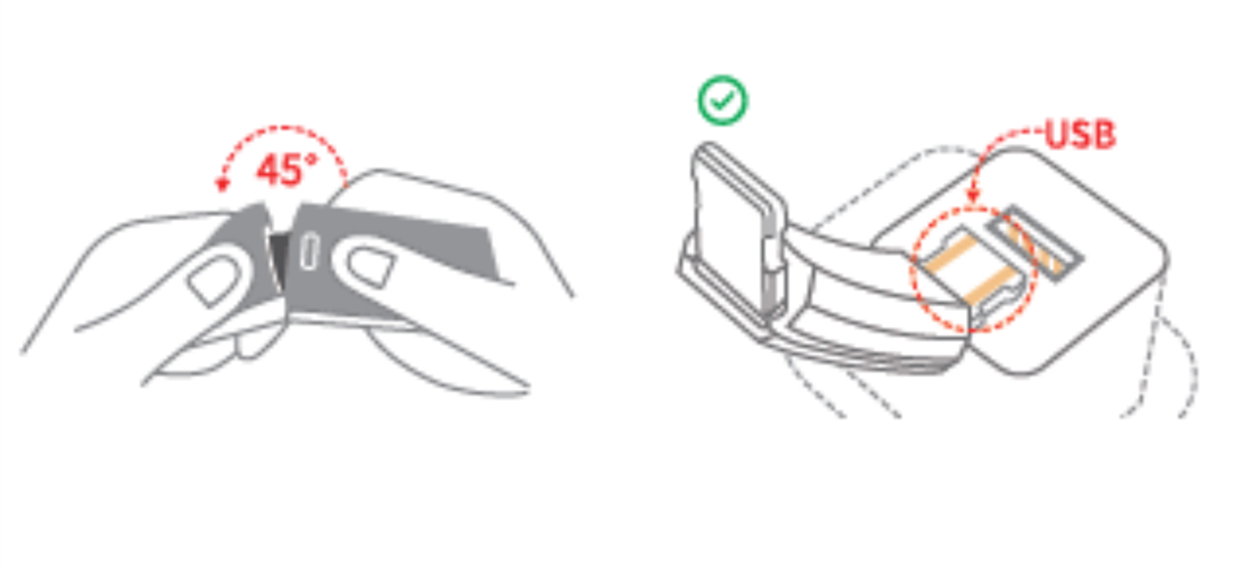
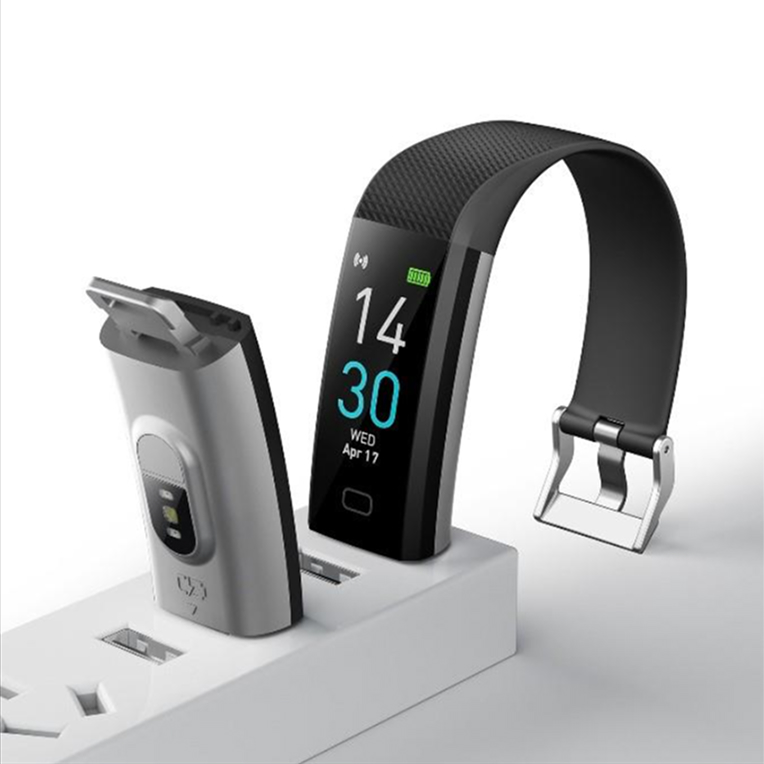
Remove the watch band on the side with the copper charging contacts by pulling it up and away at a 45° angle.
Plug the exposed copper connector directly into a USB port (for example, on a laptop, computer, or standard USB wall adapter).
A battery or charging icon will appear on the screen.
Allow the watch to charge for at least 2 hours before first use.
💡 Tip: The Kario Wellness Watch plugs in directly—no charging cable or magnetic charger needed.
[Insert Image: Band pulled at 45° to reveal copper connector]
▶️ 2. Turning the Watch On & Navigation
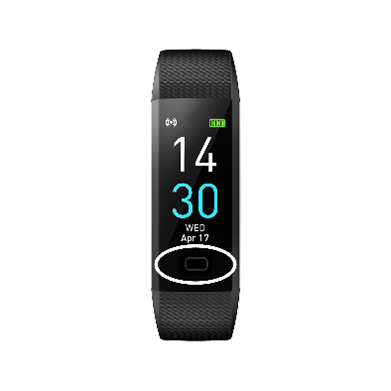
Your Kario Wellness Watch has no side buttons. All controls are through the touch area at the bottom of the screen.
Turn on: Plug the watch into a USB port to activate if the screen is off.
Navigate: Tap the control area at the bottom of the screen to scroll through features.
Access more options: When you reach “More”, long press on it to open additional settings.
[Insert Image: User tapping bottom control area on watch face]
📱 3. Download the Runmefit App
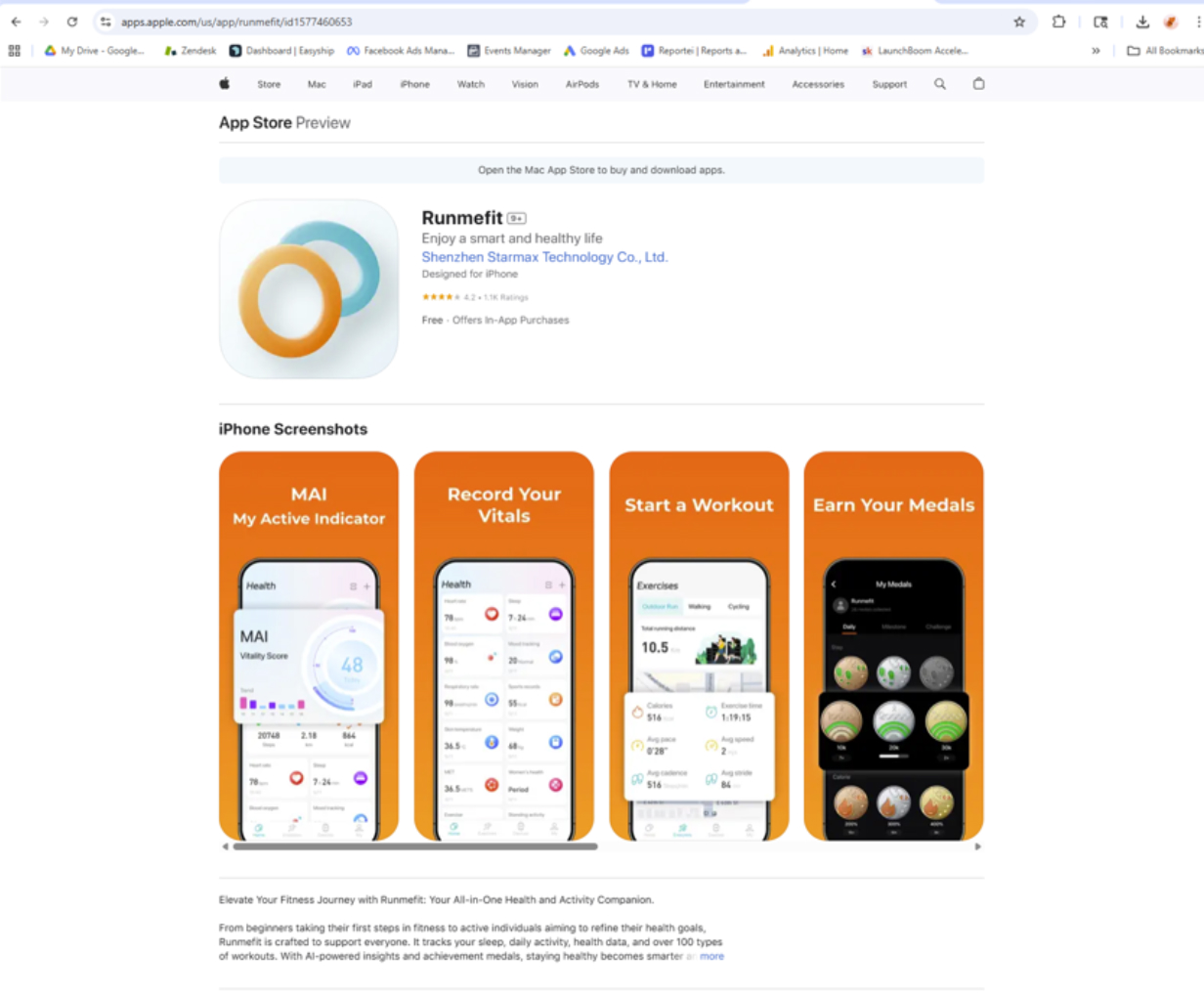
Until the new Kario app is released, use the Runmefit app to connect and sync your Kario Wellness Watch.
How to download:
After installing, open Runmefit and grant Bluetooth and notification permissions when prompted.
[Insert Image: Runmefit app logo on smartphone screen]
🔗 4. Pairing & Syncing
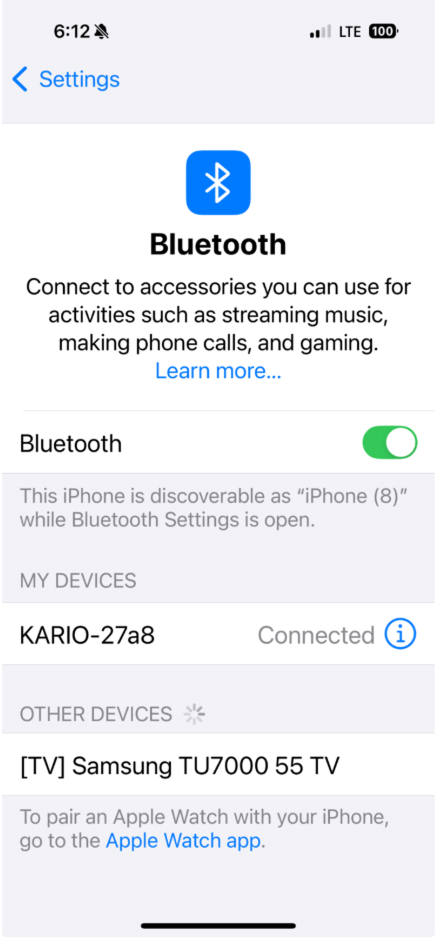
Turn on your phone’s Bluetooth.
Open the Runmefit app.
Tap “Add Device” or “Bind Device” and select Kario Wellness Watch.
Confirm the pairing on your phone and watch.
Once paired, your data will start syncing automatically.
💡 To manually sync data anytime, swipe down on the Runmefit app home screen on your phone.
[Insert Image: Runmefit app pairing screen with watch connection icon]
⌚ 5. Wearing Your Watch Correctly
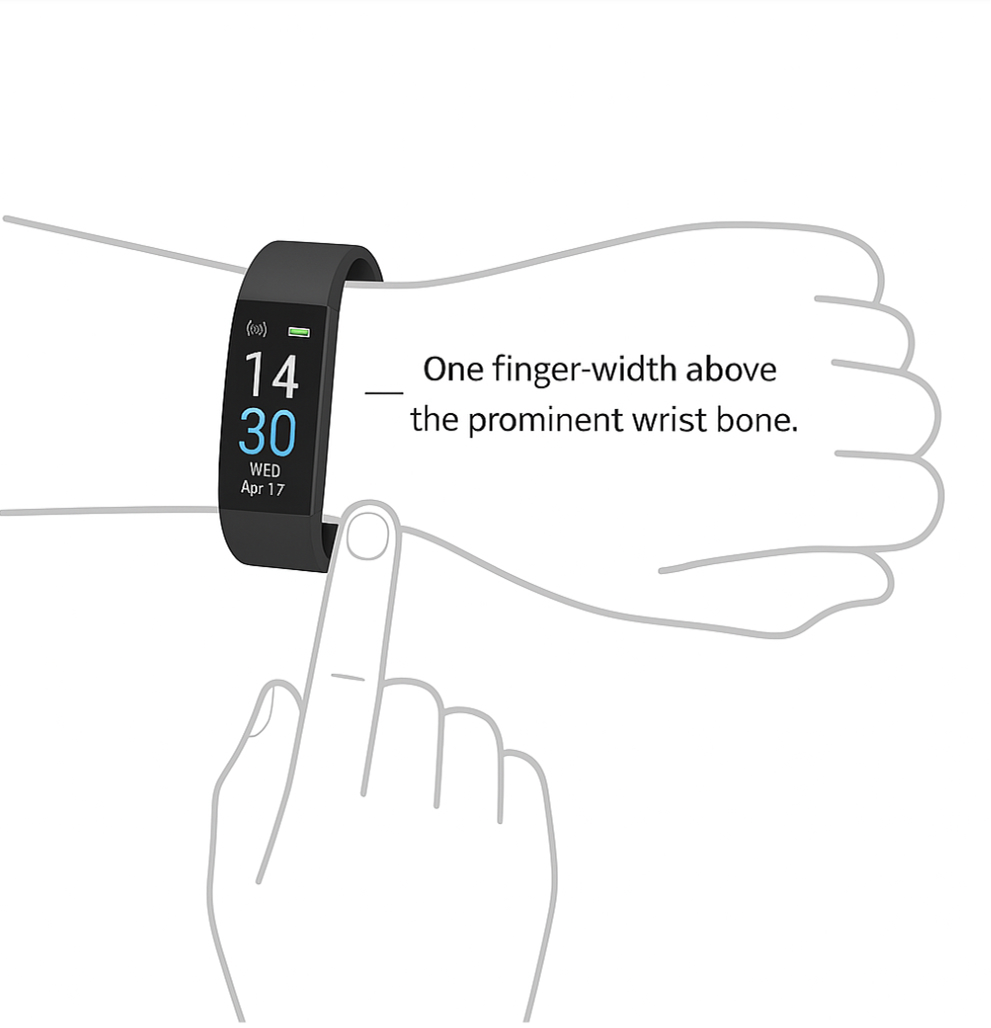
Wear your watch one finger above your wrist bone.
Keep it snug but comfortable.
Make sure the sensors on the back are touching your skin for accurate readings.
[Insert Image: Proper watch placement on wrist]
❤️ 6. What the Kario Wellness Watch Measures
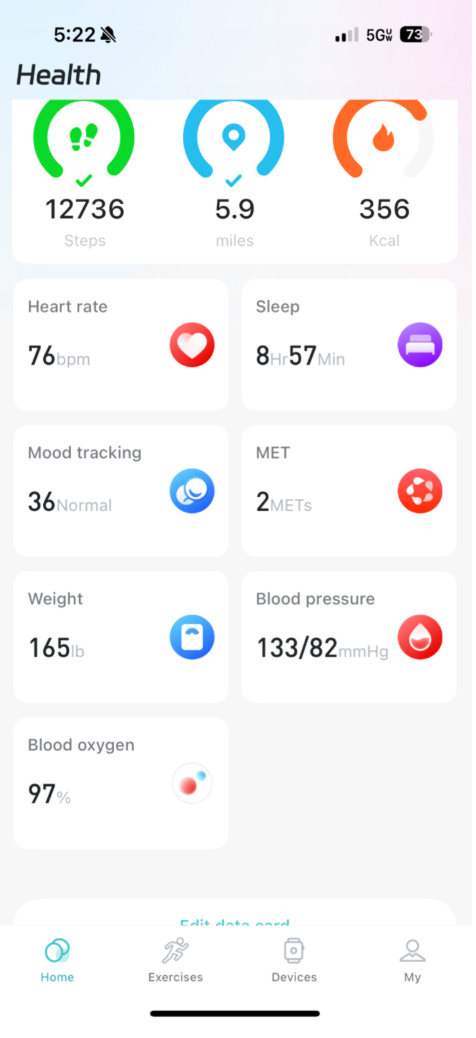
Your Kario Wellness Watch tracks and records the following health and activity metrics through the Runmefit app:
Step Count – total steps taken daily
Distance – walking or running distance covered
Calories Burned – estimated daily energy use
Sleep Tracking – duration and quality (light, deep, awake)
Heart Rate (HR) – continuous heart rate monitoring
Heart Rate Variability (HRV) – indicates stress and recovery balance
Blood Oxygen (SpO₂) – oxygen levels during sleep or workouts
Blood Pressure – estimated systolic and diastolic readings (not medical grade)
Body Temperature – skin or surface temperature
Sport Modes – activity tracking for running, cycling, walking, and more
All results are displayed in the Runmefit app dashboard, showing daily, weekly, and monthly trends.
[Insert Image: App dashboard showing HR, SpO₂, and HRV metrics]
💤 7. Sleep Tracking
Your Kario Wellness Watch automatically monitors your sleep when worn overnight.
In the Runmefit app, you can view:
💡 For best results, wear your watch snugly and keep it charged before sleeping.
[Insert Image: Sleep data screen in Runmefit app]
🏃♀️ 8. Sport & Activity Modes
To start tracking an activity:
Tap through the menu until you see “Sport”.
Long press to enter and select your activity (Running, Cycling, Walking, etc.).
Long press again to start and stop tracking.
Your data will automatically sync to the app after your workout.
[Insert Image: Watch showing Sport Mode options]
🔔 9. Notifications & Reminders
When paired with the Runmefit app, you can receive:
Incoming call and text alerts
App notifications (WhatsApp, Facebook, etc.)
Sedentary reminders
Alarm and timer alerts
Customize notifications in Runmefit → Device Settings → Notifications.
[Insert Image: Watch displaying text message notification]
🧼 10. Care & Maintenance
Keep your Kario Wellness Watch clean and dry for best performance.
Wipe sensors regularly with a soft, damp cloth.
Avoid wearing in hot showers, saunas, or swimming pools.
The device is water-resistant for daily use (not waterproof).
Store in a cool, dry place when not in use.
[Insert Image: Cleaning the back sensor with soft cloth]
⚙️ 11. Troubleshooting
| Problem | Solution |
|---|
| Watch doesn’t turn on | Plug into a USB port and charge for at least 30 minutes |
| App can’t find watch | Turn Bluetooth off and on, then retry pairing |
| Data not syncing | Swipe down on the Runmefit app home screen |
| Screen unresponsive | Plug into USB power to restart the watch |
🛡️ 12. Safety & Warranty
Use only a USB port for charging.
Do not expose to extreme heat or moisture.
Avoid dropping or disassembling the device.
Covered by a 1-year limited warranty for manufacturing defects.
📞 Support
Need help?
Contact us anytime:
Email: info@Resona.Health
Phone: 1-321-221-5560
Website: www.Resona.Health